Full supplied reference clip (about 19 seconds), not an AI Tiny Desk result. Recreate loads this source video; add your own reference images.
AI Tiny Desk Video Generator
Your clip. Your cast. A new take on the performance.
Add a clip to estimate credits
Review the cost before you generate.
Desk-concert reference clips
The first 15 seconds of a supplied external reference, not an AI Tiny Desk result. Recreate loads this source video; add your own reference images.
External reference: the first 10 seconds of College football ensemble. This is an excerpt of the same clip, not a separate AI Tiny Desk result. Recreate loads the excerpt; add your own reference images.
Make a desk-concert edit with a cast of your own. Start with a performance video you have permission to use, add reference images, and describe the change. AI Tiny Desk lets you work from the movement in your clip with Motion Transfer, or request a focused replacement with Object Swap.
What is the Tiny Desk AI trend?
Tiny Desk AI videos recast a music performance with a different lineup. An October 2026 example puts college football coaches into the scene. Sport & State's October 22 creator interview identifies its maker as Jake Whipple, posting as The Burner. The familiar performance and unexpected cast are the core of the joke.
The "Outstanding" connection comes from Charlie Wilson's performance of the Gap Band song at NPR's Tiny Desk. You can watch the original on NPR Music's official channel. The official upload is linked for background. The separate reference clips shown here were supplied from outside AI Tiny Desk and are not results generated with this tool.
AI Tiny Desk is an independent video tool. Bring your own permitted footage and images to make a version around your idea. The workspace edits an existing video; a photo alone does not supply the performance. We are not affiliated with NPR, NPR Music, Tiny Desk Concerts, Charlie Wilson, any other artist, university or sports team.
Two ways to reinterpret your performance
Motion Transfer: use the movement as your guide
10-second reference excerpt
Choose Motion Transfer when the gestures and camera movement in your source are the starting point. Add an image of the character you want to see, then describe the appearance and setting. A short, steady performance gives you a clear sequence to work with.
Start with one visible performer and one reference image. If your idea includes more people, identify each intended role in the prompt and match it to the correct image number. You can add up to eight reference images; those image numbers are instructions for the model, not locked face assignments.
Watch for changes in faces, clothing and movement throughout the result. Hands crossing a face, overlapping performers and camera cuts can make a change harder to judge. Begin with a short selection before committing credits to a longer version.
Object Swap: request one specific change
Choose Object Swap for a focused replacement within the shot. You might change the main performer, an outfit or a visible prop. Identify the target by its position, appearance and action, and explain which parts of the scene should stay consistent.
For a first attempt, select a passage where the target stays clearly visible. Add a reference image that shows the details you want. A request to change one performer is easier to review than a prompt that also changes every other person and the entire room.
Inspect nearby faces, microphones, hands and background details after generation. Object Swap can affect areas you asked to preserve. It also needs at least 409,600 pixels in each prepared source frame; heavy cropping can take a video below that limit.
| Your idea | What to prepare | Suggested approach |
|---|---|---|
| A new character following the performance | A clear source clip and character reference | Motion Transfer |
| One performer, outfit or prop replaced | A reference image and a precise target description | Object Swap |
| A different song or tighter musical timing | Your downloaded result and audio you may use | Finish in a separate video editor |
How to make your video in three steps
Choose a source clip Add reference images Review your result
1. Add your performance clip
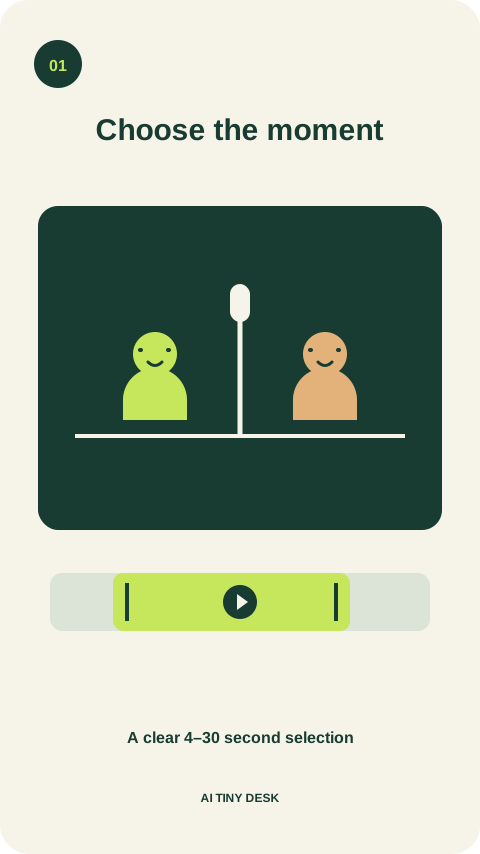
Choose a source clip Choose Recreate on a reference card to load its source video, or choose Add video, then Upload my video to use your own clip. Use Edit clip to select 4–30 seconds and adjust the crop. Pick a passage with clear faces, visible gestures and enough room around the person you want to change.
Use footage you have permission to edit and upload. Loading a reference does not include character images or start generation. Keep only the audio you are entitled to use, and preview the full selection before saving it.
2. Add images and describe the change
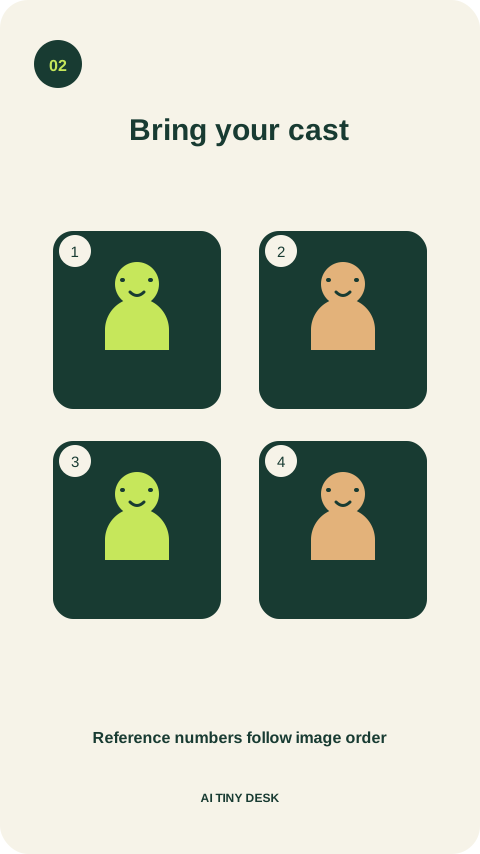
Add reference images Add one to eight reference images. A clear face and visible outfit help you explain a character change. Choose Motion Transfer or Object Swap, then edit the prompt to match your source, image order and intended result.
The starter prompt uses Reference 1. If you add more images, explain their roles; if you reorder them, update the numbers in your prompt. Include what should stay consistent, such as the camera angle, microphone placement or other performers.
3. Check the quote, then generate
Review your result Choose 480p or 720p and select Generate. Sign in if prompted, review the confirmed credit quote and add credits if needed. Generation starts when you choose Confirm & generate. Signing in or buying credits does not start it automatically.
When the result is ready, watch the whole clip and listen to its audio. Check faces, hands and timing before downloading. Your account holds completed results for a limited period, so save the video you want to keep within 30 days.
These diagrams illustrate choosing a clip, adding reference images and reviewing a result. They are not screenshots of completed generations or a before-and-after comparison.
Prompts for your desk-concert edit
The Motion Transfer prompt below is the starting text in the workspace. Adjust it to describe your actual clip. Switching modes keeps your text, so copy or adapt the Object Swap example when you change modes. These prompts describe an intended result; they are not tested guarantees.
Motion Transfer: a new lead performer
Use the adult character in Reference 1 as the main performer in this source video. Use the source performance as guidance for the gestures, posture, camera movement and timing. Match the reference character's face, hairstyle and outfit. Keep the staging and the other performers as consistent with the source as possible. Keep hands and microphones distinct. Do not add new people, logos, captions or camera cuts.
Use a source with a clearly identifiable main performer. For a group, describe each role and its reference image explicitly; separate identities are not guaranteed.
Object Swap: replace the main performer
Replace only the main adult performer nearest the camera with the adult character in Reference 1. Match the reference face, hair and outfit to the source pose, scale and lighting. Keep the other people, their clothing, the microphones, instruments, background and camera framing as consistent as possible. Follow the replacement throughout the selected clip. Do not add people, logos or text.
Rewrite the target description if the person you want to change is not nearest the camera. Review the entire result for changes to other people or objects.
Keep faces, gestures and microphones in view
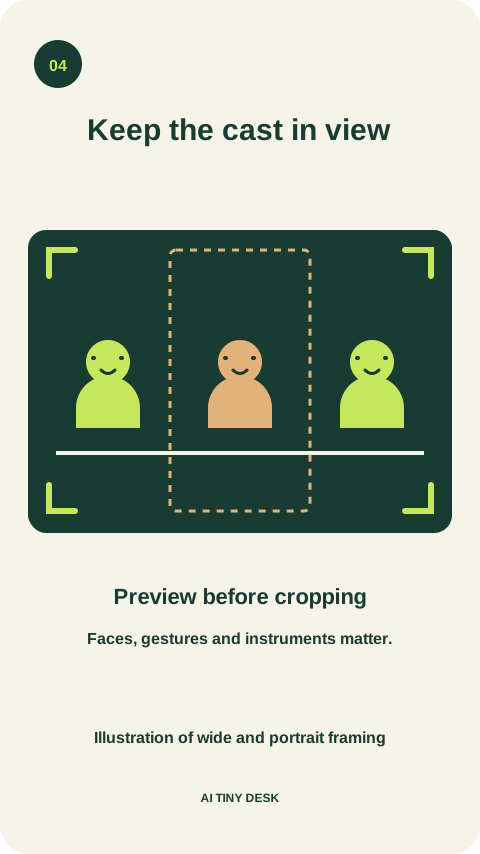
Choose the performance moment before choosing the crop. A hand gesture, a glance at another performer or a shared movement may be the detail that makes the edit work. Leave space for it throughout the clip, including the first and last frames.
A tight vertical crop can remove people from a wide group shot. Preview the whole selection before saving, and avoid cutting through faces or microphones. For Object Swap, the prepared frame must retain at least 409,600 pixels; 854 × 480 is one example that meets the requirement.
Audio needs its own review. The clip editor can keep or remove the source audio, but the generated result may not preserve it or match every mouth movement. Listen before sharing, and use a separate editor for any final soundtrack or timing adjustments.
Credits for your next take
Buy a one-time credit pack for Motion Transfer or Object Swap. Your clip length and resolution determine the cost, which you review before generating.
Start with a spark
Trial
—
one-timeUSD · one-time payment
One-time credit pack
480Credits
480p · up to 8s total
Up to 8s total at 480p
720p needs at least 520 credits
720p needs at least 520 credits
A little more room
Mini
—
one-timeUSD · one-time payment
One-time credit pack
1,000Credits
480p · up to 16s total
Up to 16s total at 480p
720p · up to 7s total
Or up to 7s total at 720p
Make it your own
Starter
—
one-timeUSD · one-time payment
One-time credit pack
1,500Credits
480p · up to 25s total
Up to 25s total at 480p
720p · up to 11s total
Or up to 11s total at 720p
More room to explore
Creator
—
one-timeUSD · one-time payment
One-time credit pack
3,300Credits
480p · up to 55s total
Up to 55s total at 480p
720p · up to 25s total
Or up to 25s total at 720p
Included with every pack
- Motion Transfer and Object Swap
- Private history and MP4 downloads
- No credit expiry while the service is active; no auto-renewal
A 10-second clip uses 600 credits at 480p or 1,300 at 720p.
480p: 60 credits/sec · 720p: 130 credits/sec
Pack allowances are alternative uses of one balance and can cover multiple clips. Each clip must be 4–30 seconds. Combine packs for longer clips or 720p.
Pricing and billing detailsCheck the cost of your selected clip
One-time credit packs. Both modes use the same rates.
Generation uses 60 credits per billed second at 480p or 130 at 720p. The prepared clip duration rounds up to the next whole second: a 4.2-second selection is billed as five seconds. Review the quote after your final trim and resolution choice.
| Video duration | 480p | 720p |
|---|---|---|
| 4 seconds | 240 credits | 520 credits |
| 5 seconds | 300 credits | 650 credits |
| 10 seconds | 600 credits | 1,300 credits |
| 16 seconds | 960 credits | 2,080 credits |
The lowest-priced pack includes 480 base credits for —. Any eligible bonus is shown separately. Compare your available balance with the confirmed quote; one pack may not cover your full clip or chosen resolution. See credit packs and billing details.
Tiny Desk AI questions, answered
The name points to edits of Charlie Wilson performing the Gap Band song Outstanding at NPR's Tiny Desk. The edits change the people on screen. The official original is linked above for context. The supplied reference clips are external material, not AI Tiny Desk results, and their inclusion does not grant permission to reuse the original performance or soundtrack.
They are AI edits that place football coaches into a musical performance; they do not document the coaches performing together at NPR. The reference cards load source footage for an edit. Add your own character images and describe what to change. The cards do not include a set of coach portraits or guarantee the same result.
You need a source video as well as at least one reference image. The video supplies the performance to work from, and the images guide the visual change. Prepare a clip of 4–30 seconds and choose Motion Transfer or Object Swap.
You can describe multiple roles using up to eight reference images, but this workspace has no separate face-lock control for each person. Five-person identity consistency has not been verified here. Start with one performer and a short clip, then inspect every face before trying a larger cast.
This workspace does not offer song generation, voice cloning or a dedicated lip-sync control. You can keep or remove audio while preparing your source clip. Check the generated file before posting; original audio, exact lyrics and beat alignment are not guaranteed. Use audio you are entitled to publish.
The cost depends on your prepared clip length and resolution. The workspace shows a confirmed credit quote before you submit. Credits are reserved when you confirm; failed generations release that reservation. A completed result uses credits even if you dislike it, and a new take is a new generation. See Pricing and the refund policy for details.
A completed video appears in the workspace, with video history also available inside your account. Download the result you want to keep within 30 days. Storage is temporary, so keep your own copy before it expires.
No. AI Tiny Desk at aitinydesk.org is an independent tool and is not affiliated with or endorsed by NPR, NPR Music, Tiny Desk Concerts, Charlie Wilson, any other artist, university or sports team. Use footage and images you have permission to use, and make it clear when a shared video has been edited with AI.
Give your performance a new cast
Bring a clip and reference images you have permission to use. Start with a short scene, describe your idea and review the credit quote before generating.
Start my video